To extract prices from a competitor’s website, create an Agenty scraping agent, select the product fields on a category or search results page, and preview the results before running the agent in the cloud. This example extracts product names, prices, images, and cart links from a simple eCommerce product listing.
Scraping product, price, and stock information is a practical business use of web scraping. Most eCommerce companies rely on scraping software to compare prices, check whether they offer the best price against competitors, and plan margin improvements. This process is called competitive pricing analysis or pricing intelligence: businesses monitor competitor prices to inform their strategy and adjust margins.
Set up a scraping agent
Agenty’s data scraping tool requires a scraping agent for the website you want to extract data from. To setup a scraping agent, install the chrome extension first.
- Open the competitor’s product listing page. Click the extension icon in the right corner of the browser to enable it.
- Click New to add fields. Use the Asterisk (*) button to generate selectors for any HTML element you want to extract.
For this example, add these four fields:
- ProductName
- ProductPrice
- ProductImage
- ProductCartLink
ProductName: extract product names
Use .list-group-item-heading for ProductName. On this example page, the selector displays all six product names correctly in the preview. The JSON excerpt below shows the first four.

[
 {
   "ProductName": "Product A"
 },
 {
   "ProductName": "Product B"
 },
 {
   "ProductName": "Product C"
 },
 {
   "ProductName": "Product D"
 }
]
ProductPrice: extract prices with the currency symbol
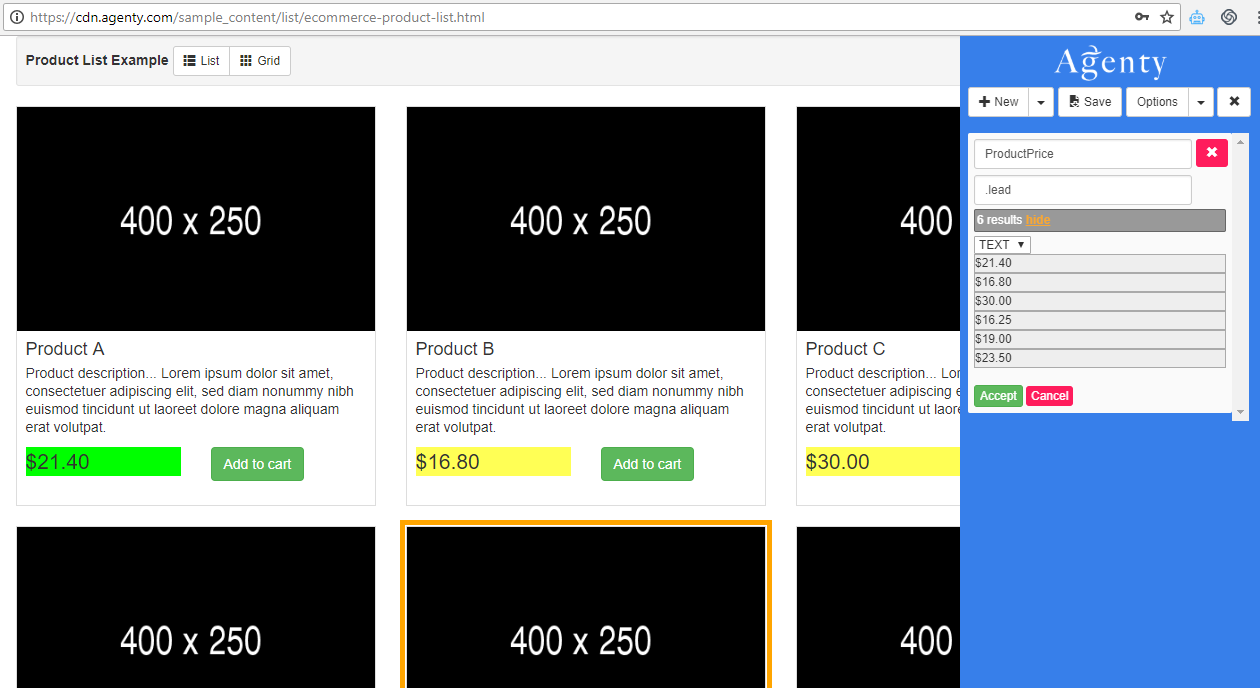
Use .lead for ProductPrice. It extracts the prices of all six products on this page, including their USD currency symbol.
ProductImage: extract image URLs
Use .list-group-image for ProductImage and select the src attribute. The extracted result preview shows the images for all six products correctly.

ProductCartLink: extract cart links
Use .btn-success for ProductCartLink and select the href attribute. The preview shows the cart links for all six products correctly.

Preview the extracted product and price data
After configuring all four fields, click Preview at the top of the Agenty extension. The result contains each product’s name, price, image URL, and cart link:
[
  {
    "ProductName": "Product A",
    "ProductPrice": "$21.40",
    "ProductImage": "http://placehold.it/400x250/000/fff",
    "ProductCartLink": "/cart/118"
  },
  {
    "ProductName": "Product B",
    "ProductPrice": "$16.80",
    "ProductImage": "http://placehold.it/400x250/000/fff",
    "ProductCartLink": "/cart/119"
  },
  {
    "ProductName": "Product C",
    "ProductPrice": "$30.00",
    "ProductImage": "http://placehold.it/400x250/000/fff",
    "ProductCartLink": "/cart/120"
  },
  {
    "ProductName": "Product D",
    "ProductPrice": "$16.25",
    "ProductImage": "http://placehold.it/400x250/000/fff",
    "ProductCartLink": "/cart/121"
  },
  {
    "ProductName": "Product E",
    "ProductPrice": "$19.00",
    "ProductImage": "http://placehold.it/400x250/000/fff",
    "ProductCartLink": "/cart/122"
  },
  {
    "ProductName": "Product F",
    "ProductPrice": "$23.50",
    "ProductImage": "http://placehold.it/400x250/000/fff",
    "ProductCartLink": "/cart/123"
  }
]
Save and run the scraping agent
Check the preview, then click Save to store your web scraper agent in the Agenty cloud application. There, you can use scheduling, batch URL crawling, and other advanced options to automate screen scraping and extract prices from websites.
Note : You need to enter your Agenty Email and Password to save the web scraping agent (https://www.agenty.com)

Now login to Agenty. You’ll find your agent in the Scraping Agents list or on your Dashboard. Start the agent to scrape the data, or schedule it to run when you need it.
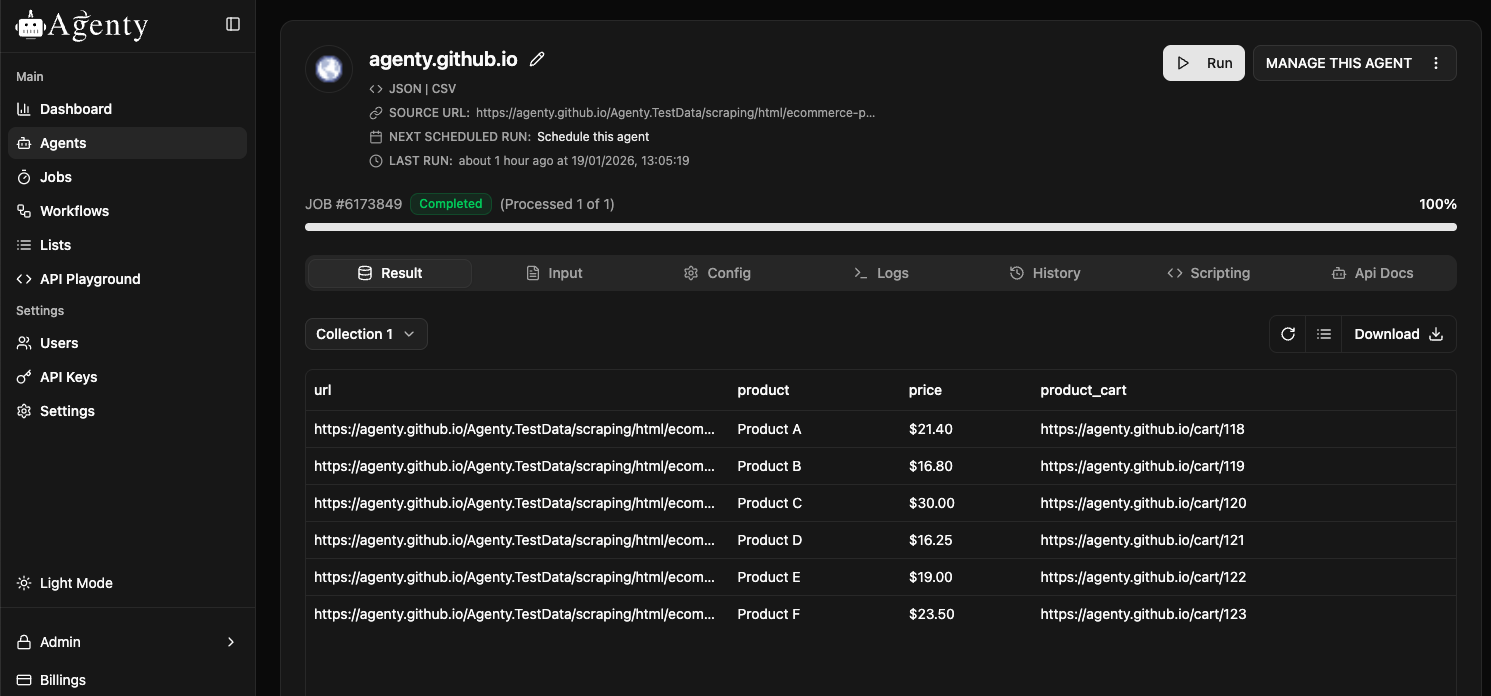
The screenshot below shows the product and pricing details extracted after running this agent:
Try the sample price extraction agent
- Sign in to Agenty and click New Agent.
- Find this same agent in the Sample Agents list.

Try the sample and share your feedback in the comments. If your enterprise needs managed services to monitor competitors, request a demo.