When scraping data at scale, you often need to extract structured data from multiple web pages that share the same layout - such as product pages, real estate listings, directory profiles, or news articles. Rather than creating a separate scraper for every single page, Agenty allows you to design a field template once and pass multiple URLs into it.
By configuring the Input tab in your scraping agent, you can specify how target page URLs are supplied to the agent. Agenty supports four input types for bulk URL scraping:
- Source URL Only
- Manual URLs
- Select a URL List
- URL From Source Agent
Source URL Only
When you create an agent from a web page, that initial link is stored as the Source URL for that agent. The “Source URL Only” input type restricts the agent to execute strictly against this default URL.
This mode is primarily used during the initial agent setup and testing phase. It allows you to build, test, and refine your CSS or XPath selectors on a single page before running bulk scraping jobs across hundreds or thousands of pages.
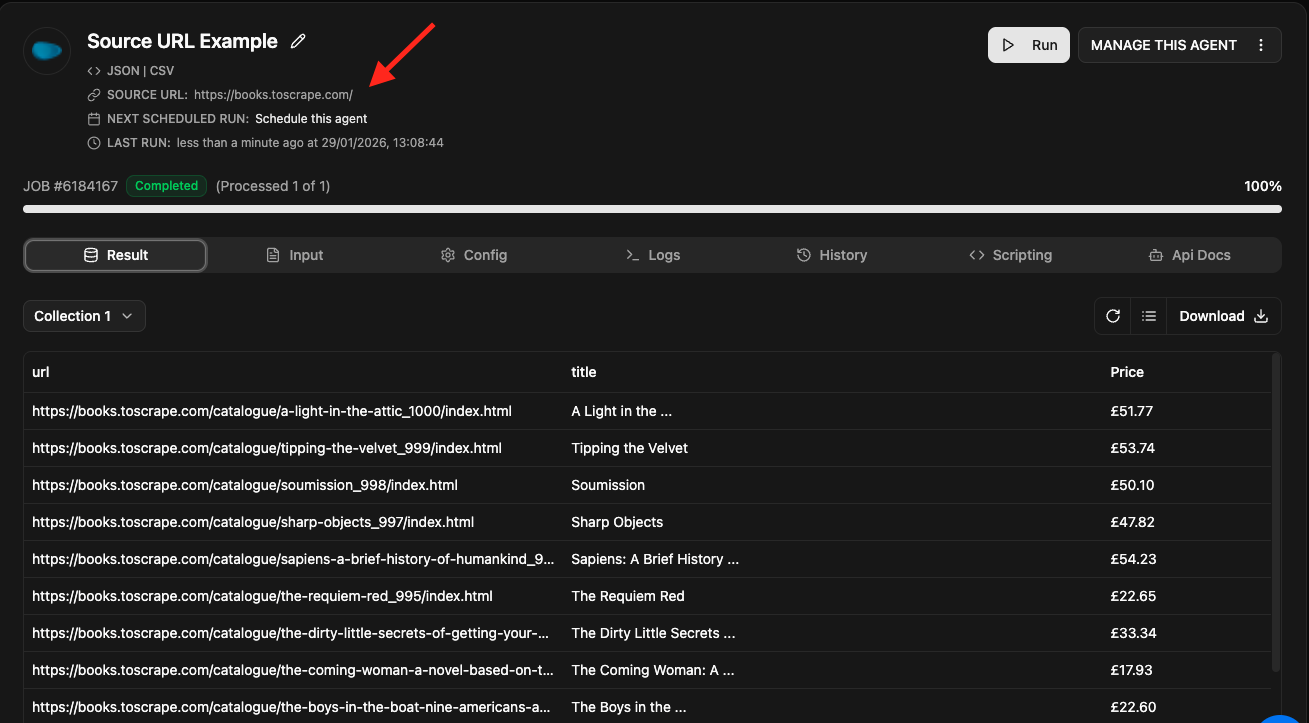
Steps to Set Up Source URL Only
- Go to your agent dashboard and navigate to the Input tab.
- Select Source URL Only as the Input Type.
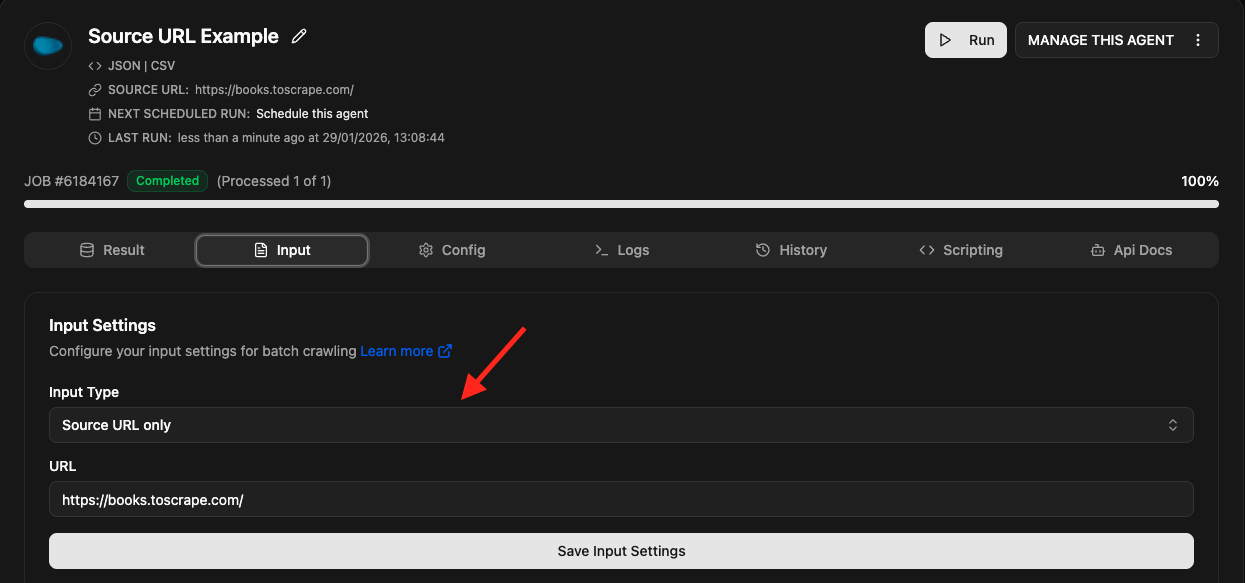
- Click Save to update the input configuration.
- Click Re-run to execute the scraping job against the selected source URL.
Manual URLs
The Manual URLs input type allows you to enter multiple URLs directly into your agent. This method is ideal when you have a specific batch of URLs (typically up to a few hundred) that share an identical page structure.
For example, consider these two sample pages:
https://cdn.agenty.com/sample_content/list/simple-list.htmlhttps://cdn.agenty.com/sample_content/list/list-2.html
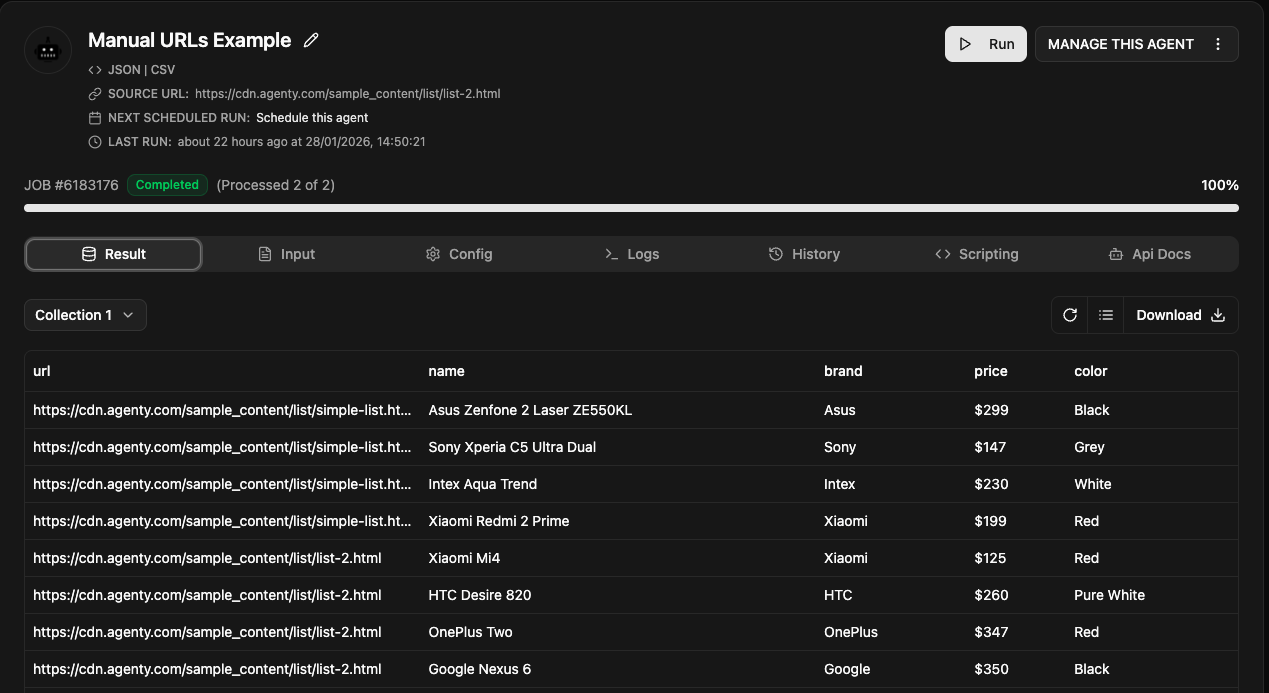
Because both pages share the same HTML structure, you can create a single agent using the first URL as a reference (setting up fields like URL, Name, Brand, Color, and Price) and then pass additional URLs manually to extract identical fields from all pages.
Before Adding Manual URLs
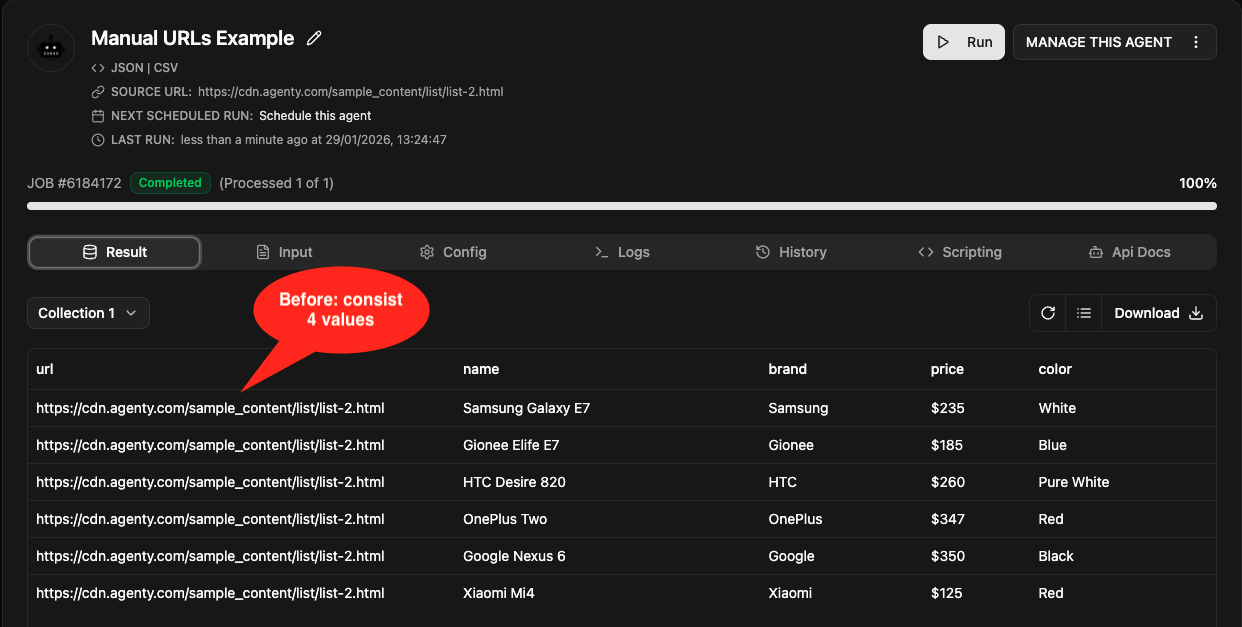
Steps to Configure Manual URLs
- Open your scraping agent in Agenty.
- Navigate to the Input tab.
- Change the Input Type dropdown to Manual URLs.
- Enter or paste your target links into the URLs List text box (one URL per line).
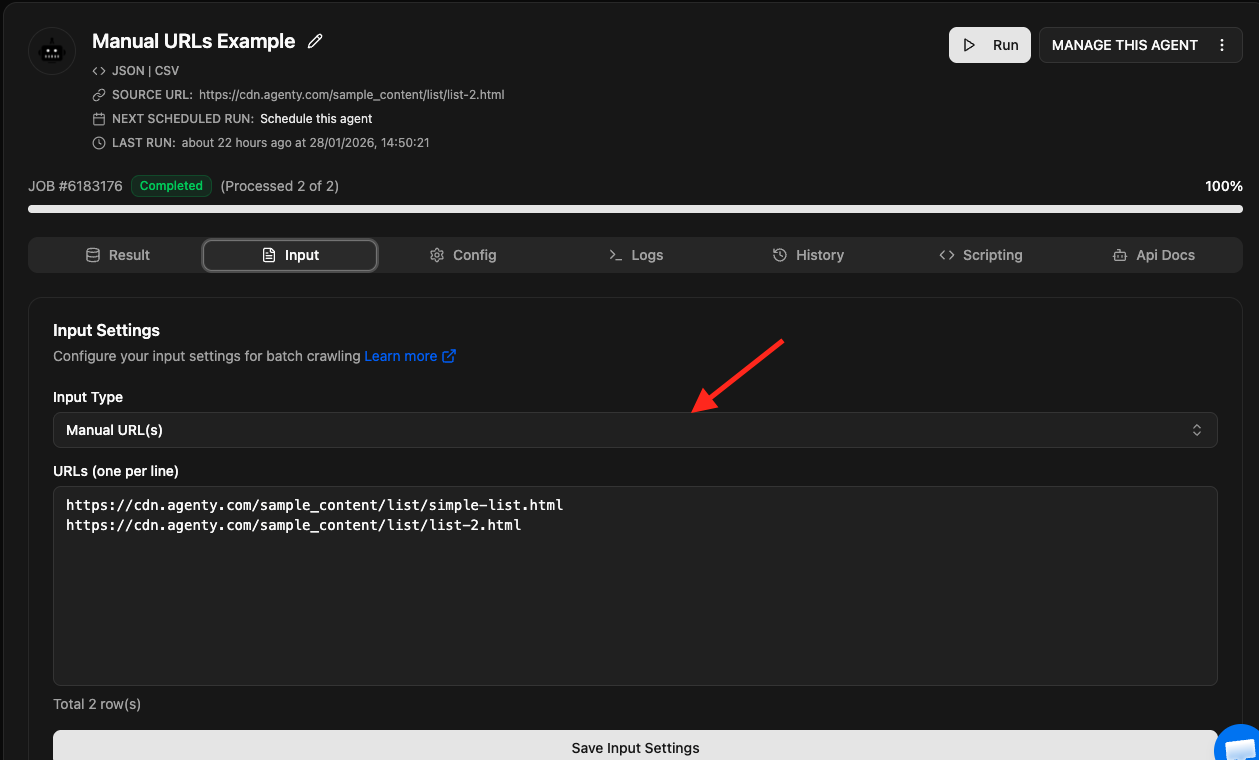
- Click Save to apply your changes.
- Click Re-run to process all listed URLs in a single job.
Scraping Results
After the agent completes the run, the output table will display extracted records for all specified URLs using the defined field structure.
Select a URL List
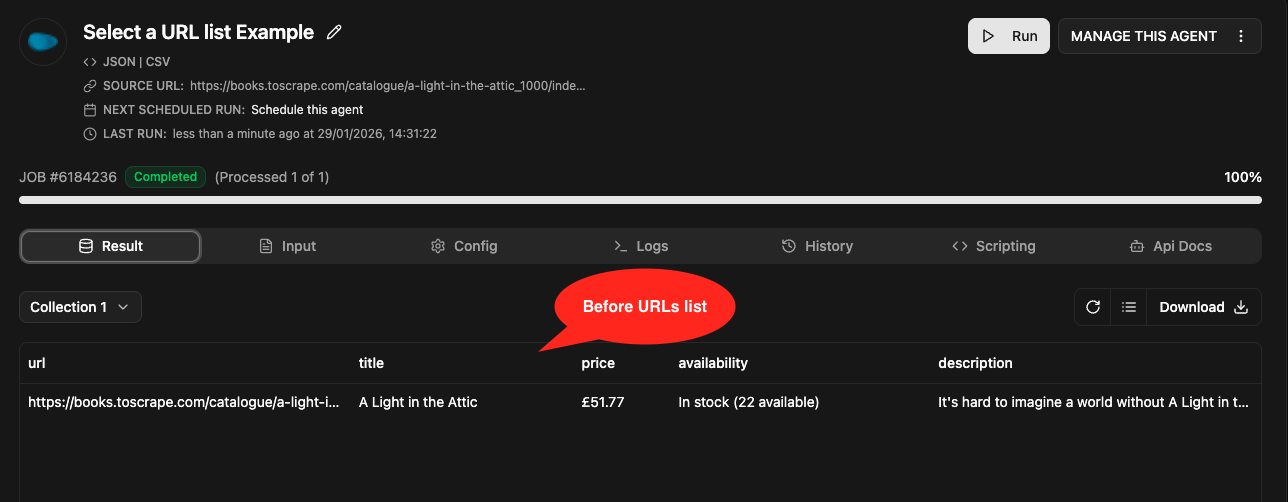
When managing large web scraping operations involving thousands of pages, pasting URLs directly into a web form isn’t practical and can cause browser performance issues. The Select a URL List feature allows you to upload large URL datasets as delimited files (such as CSVs) and attach them directly to your agent.
This feature is designed for large-scale web scraping projects where you need to process lists exceeding 5,000 URLs while maintaining performance.
Steps to Upload and Attach a URL List
- Go to the Input tab of your agent and set the Input Type to Select a URL List.
- Click Create new list to open the list management interface.
- Enter a List Name and select your file to upload.
- Set the appropriate Delimiter (for example, select Comma (,) for standard CSV files).
- If your file includes a header row, check the Has headers? box. If left unchecked, Agenty automatically assigns column names like
Field1,Field2, etc. - Click Upload Preview to verify that the file layout and column alignment are parsed correctly.
- Click Confirm upload to complete the file import.
- Return to your agent’s Input tab, select the newly uploaded list from the list dropdown, and choose the column containing your target URLs.
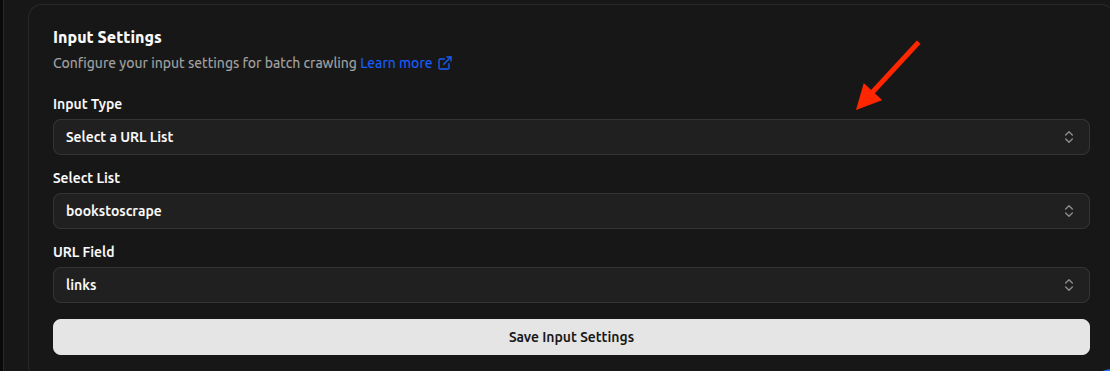
- Click Save to finalize your input settings.
- Click Re-run to start the bulk URL scraping job across all URLs in the uploaded list.

URL From Source Agent
In multi-step scraping workflows, you often need to gather listing URLs first before scraping detailed data from each individual item page. The URL From Source Agent input type connects two agents: a primary agent (the source) that collects URLs, and a secondary agent (the details agent) that scrapes each target page.
For instance, when scraping an e-commerce catalog:
-
Source Agent (List Agent): Scrapes category or listing pages to harvest item links into a field (e.g.,
Page_URL). -
Details Agent: Consumes those harvested
Page_URLvalues as input to extract deep page attributes likeTitle,URL,Price, andAvailability.
This workflow allows you to automate deep web crawling without manually exporting and re-uploading URL lists between steps.
Steps to Link Source and Details Agents
- Build your primary list agent (such as a crawling agent) to collect target URLs into a specific field (e.g.,
Page_URL). - Build your secondary details agent configured with the extraction fields required for the detail pages.
- Open the Input tab in your details agent.
- Set the Input Type to URL From Source Agent.
- Choose your primary list agent from the Select the Agent dropdown.
- Select the exact field containing the URLs (e.g.,
Collection1.Page_URL) from the Select the Field contains URL dropdown.
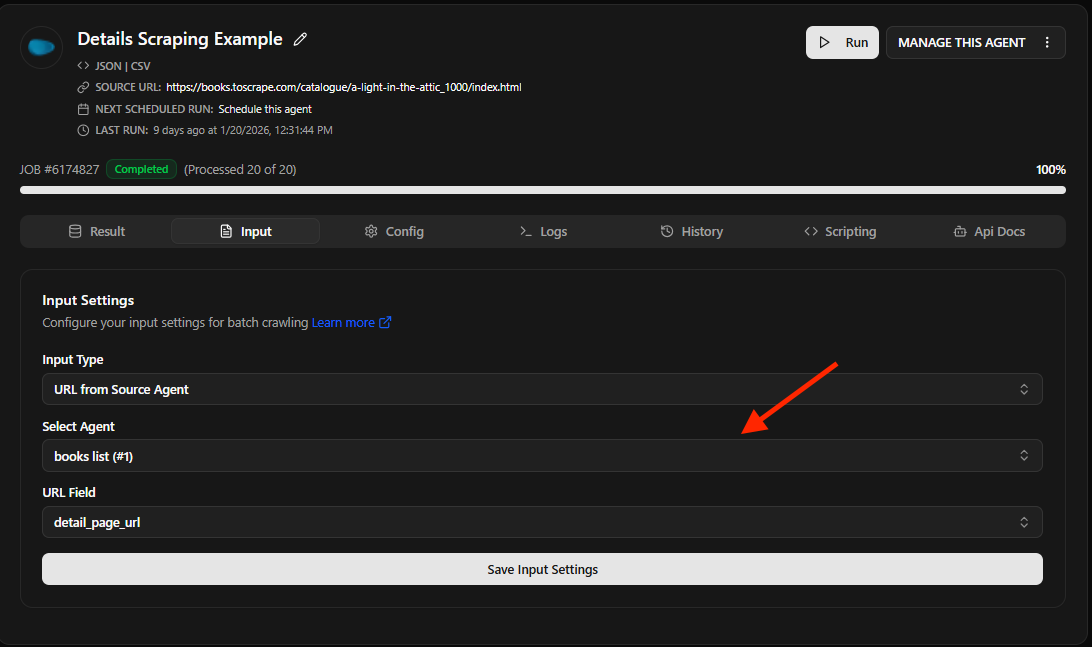
- Click Save to link the agents.
- Click Re-run on the details agent to execute bulk URL extraction across all URLs collected by the source agent.