Agenty AI exposes a Model Context Protocol (MCP) server that gives AI assistants like Claude, Cursor, and any MCP-compatible client direct access to browser automation tools. You can capture screenshots, generate PDFs, scrape web pages, extract structured data, convert pages to Markdown and more using LLM models
In this article, I will covers how to connect to the Agenty’s MCP server and how to use each available tool.
Prerequisites
Before connecting, you will need:
- An Agenty AI account and API key
- An MCP-compatible client such as Claude Desktop, Cursor, Windsurf, or any tool that supports the Model Context Protocol
- Node.js 18 or later if you are using the CLI or a local configuration file
How to Connect
Add the following configuration to your MCP client. For Claude Desktop, this goes in claude_desktop_config.json. For Cursor, it goes in your .cursor/mcp.json file.
{
  "mcpServers": {
    "agenty": {
      "url": "https://api.agenty.ai/mcp",
      "headers": {
        "Authorization": "Bearer YOUR_API_KEY"
      }
    }
  }
}
Replace YOUR_API_KEY with the key from your Agenty AI > Settings > API Key. Once added, restart your client and the Agenty tools will appear in the tool list.
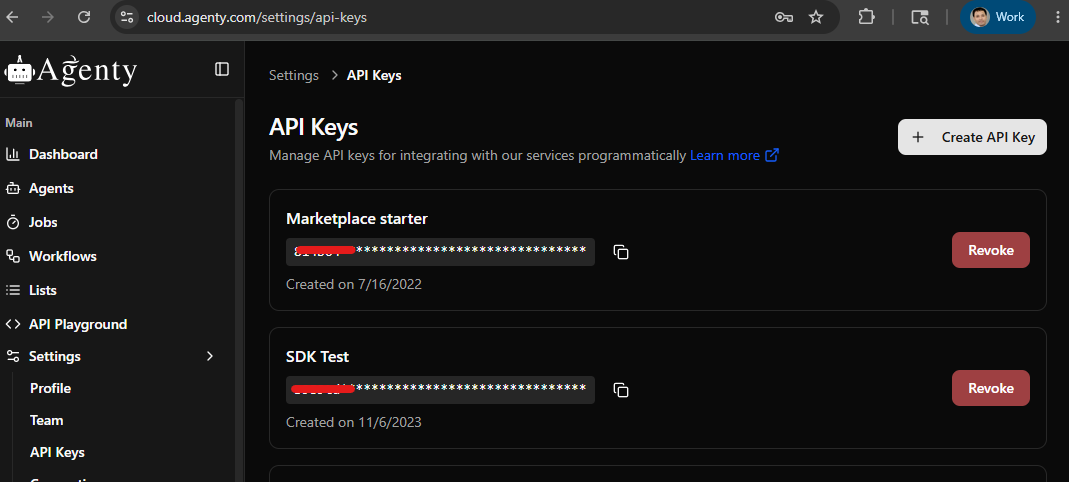
For clients that support OAuth or token-based login, you can authenticate directly through the Agenty AI sign-in flow without manually pasting a key.
Available Tools
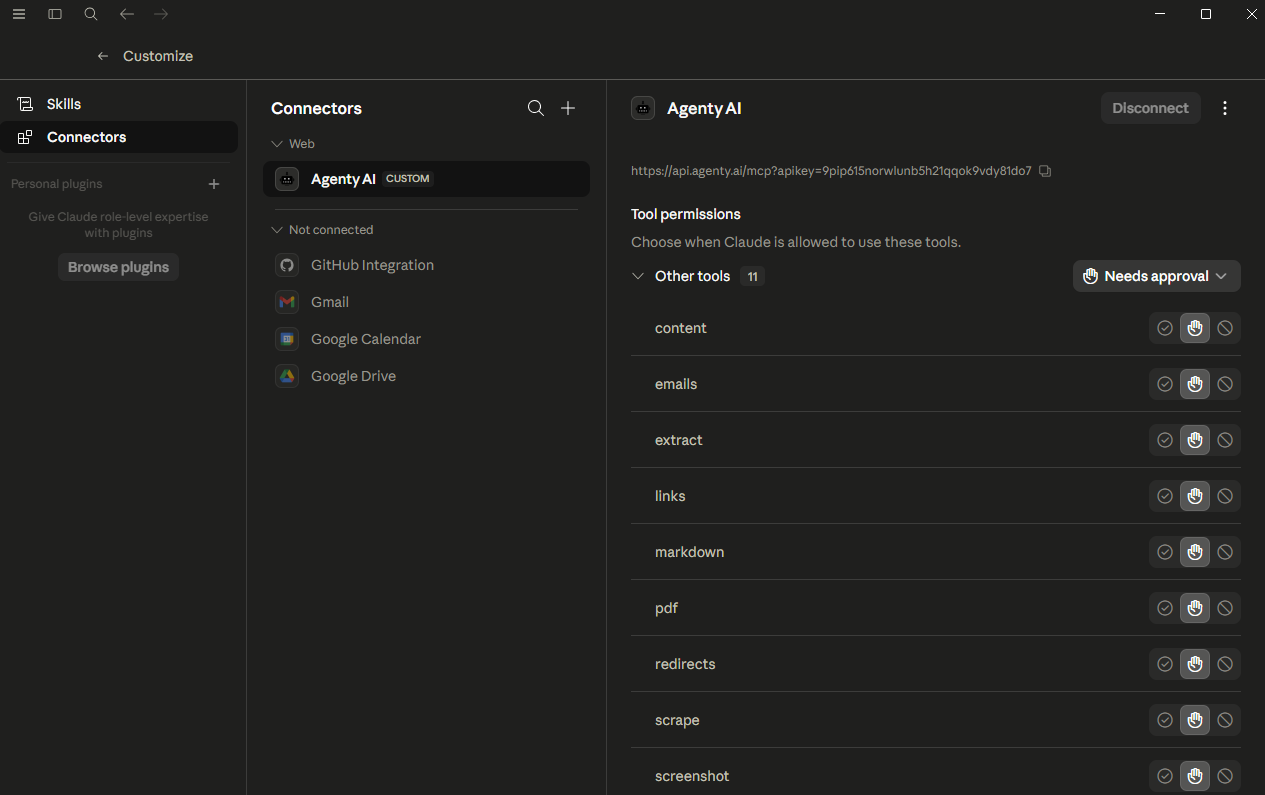
The Agenty MCP server provides eleven tools covering the most common browser automation needs. Each tool accepts a URL or raw HTML as input along with optional parameters for controlling the browser behavior.
Markdown MCP
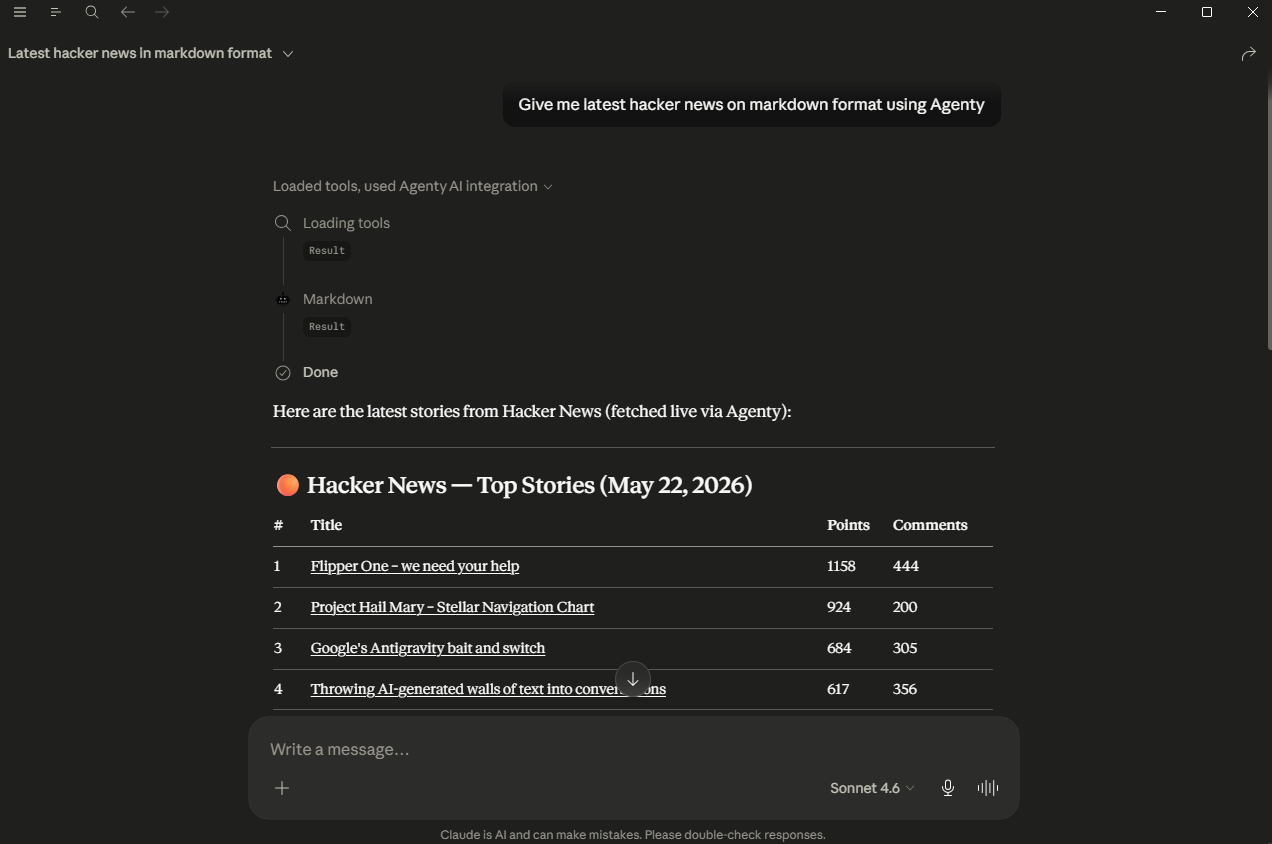
The markdown tool loads a page, strips navigation, footers, scripts, ads, and other boilerplate, and converts the remaining readable content to clean Markdown. It can resolve relative links to absolute URLs and remove data images.
This is particularly useful for feeding web content into LLMs, building RAG pipelines, or saving readable versions of articles.
Example prompt:
“Convert Web scraping - Wikipedia to Markdown”
“Get the Markdown content of this blog post: https://example.com/article”
Screenshot MCP
The screenshot tool launches a real browser, loads the page, and captures it as a PNG or JPEG image. It supports full-page screenshots, clipped regions, custom viewports, device emulation, and image manipulation like resize and rotate.
This is useful when you want a visual snapshot of a page, need to document a UI, or want to verify how a site looks at a specific screen size.
Example prompt:
“Take a full-page screenshot of https://example.com and return it as a PNG”
“Capture a mobile screenshot of https://agenty.ai using an iPhone 14 viewport”
Web Scraping MCP
The web scrape tool loads a URL in a real browser with full JavaScript execution and returns the rendered HTML. Unlike simple HTTP requests, it waits for dynamic content to load, making it reliable for single-page applications and JavaScript-heavy pages.
Use this when you need the raw HTML of a page exactly as a user would see it after all scripts have run.
Example prompt:
“Scrape the HTML of https://news.ycombinator.com and return the full rendered content”
“Scrape this page and wait 3 seconds for dynamic content to load: https://example.com/dashboard”
Web Crawling MCP
The links crawling tool renders a page and extracts every hyperlink found in the DOM. It returns a flat list of all anchor hrefs, which you can use to build a crawl queue, audit internal linking, or discover content.
Example prompt:
“Find all links on https://agenty.ai”
“Extract every link from https://example.com/blog and give me a list of article URLs”
PDF MCP
The PDF tool renders a page in a real browser and exports it as a PDF. You can set the page format (A4, Letter, etc.), enable landscape mode, set margins, show or hide backgrounds, and provide custom headers and footers.
Example prompt:
“Generate a PDF of https://agenty.ai in A4 format with print backgrounds enabled”
“Create a landscape PDF of https://example.com/report”
Data Extraction MCP
The extract tool renders a page and extracts structured data using CSS selectors or XPath. It is suited for pulling specific fields like product prices, review counts, job titles, or any repeating element from a rendered page.
Example prompt:
“Extract the product names and prices from https://example.com/products”
“Get all the headlines from https://news.ycombinator.com”
Sitemap MCP
The sitemap crawler tool reads a website’s sitemap.xml, follows sitemap index files, and returns a complete list of all discovered URLs. It supports exclusion patterns to filter out certain paths.
Use this to quickly understand the full structure of a website or to build a crawl list for a large site.
Example prompt:
“Find all URLs in the sitemap for https://agenty.ai”
“Get the sitemap for https://example.com and exclude any URLs containing /blog/”
Redirect Tracing MCP
The redirects capture tool follows all HTTP redirects for a given URL and returns the full chain including each intermediate URL, status code, and final destination.
This is helpful for debugging broken links, verifying canonical URLs, and auditing affiliate or shortened links.
Example prompt:
“Trace all redirects for https://bit.ly/some-link”
“Show me the redirect chain for https://example.com/old-page”
Email Scraper MCP
The emails scraper tool loads one or more URLs (up to ten at a time) and extracts all email addresses found on the rendered page. It handles obfuscated addresses and dynamically loaded contact sections.
Example prompt:
“Find all email addresses on https://example.com/contact”
“Scrape emails from these three pages: https://site1.com, https://site2.com, https://site3.com”
Content MCP
The content tool returns the complete rendered HTML of a page after JavaScript execution. It is similar to scrape but optimized for use cases where you need the final DOM state rather than a scrape pipeline.
Example prompt:
“Get the rendered HTML content of https://example.com/app”
Snapshot MCP
The snapshot tool captures the accessibility tree of a page — a structured list of all interactive and readable elements including buttons, links, inputs, and headings. This is designed for AI agents that need to navigate or reason about a page without processing raw HTML.
Example prompt:
“Take an accessibility snapshot of https://example.com so I can understand the page structure”
Example Prompts
Here are a few multi-step examples that combine tools:
Audit a website’s content:
“Get the sitemap for https://example.com, then convert the top 5 pages to Markdown and summarize each one”
Generate a visual report:
“Take a screenshot of https://agenty.ai on mobile and desktop viewports and show me both”
Build a contact list:
“Find all links on https://example.com/team, then scrape email addresses from each team member page”
Verify link health:
“Extract all links from https://example.com/blog and trace the redirect chain for any that don’t return 200”
Archive a page:
“Convert https://example.com/article to Markdown and generate a PDF version, both with absolute links”
Supported Parameters
All navigation-based tools (screenshot, pdf, scrape, content, markdown, links, extract, redirects) share a common set of browser configuration options:
| Parameter | Type | Description |
|---|---|---|
url |
string | The page URL to load. Required if html is not provided. |
html |
string | Raw HTML string to render instead of loading a URL. |
waitFor |
string or number | Wait for a CSS selector, a number of milliseconds, or a network event before capturing. |
viewport |
object | Set width, height, deviceScaleFactor, isMobile, hasTouch, and isLandscape. |
device |
string | Emulate a named device such as iPhone 14 or iPad Pro. |
userAgent |
string | Override the browser user agent string. |
cookies |
array | Inject cookies before the page loads. |
blockAds |
boolean | Block ad network requests. Enabled by default for scraping tools. |
blockTrackers |
boolean | Block tracking and analytics scripts. |
goToOptions |
object | Control navigation timeout (ms) and waitUntil strategy (load, domcontentloaded, networkidle0, networkidle2). |
setExtraHTTPHeaders |
object | Add custom request headers as key-value pairs. |
rejectRequestPattern |
array | Block requests matching these URL patterns. |
requestInterceptors |
array | Intercept requests matching a pattern and return a custom response. |
authenticate |
object | Set HTTP username and password for pages behind basic auth. |
anonymous |
object | Route through a proxy and skip resource types for anonymous browsing. |
Screenshot-specific parameters:
| Parameter | Type | Description |
|---|---|---|
options.fullPage |
boolean | Capture the full scrollable page. Defaults to true. |
options.type |
string | Image format: png or jpeg. Defaults to png. |
options.quality |
number | JPEG quality from 0 to 100. |
options.clip |
object | Capture a specific region with x, y, width, and height. |
options.omitBackground |
boolean | Make the background transparent (PNG only). |
manipulate |
object | Post-process the image with resize, rotate, flip, and flop. |
responseType |
string | Return the image as a buffer (default) or a hosted url. |
When using the screenshot tool via MCP, the result is returned as a hosted URL by default. When calling the API directly, responseType defaults to buffer. Set responseType: 'url' to receive a hosted link instead.
PDF-specific parameters:
| Parameter | Type | Description |
|---|---|---|
options.format |
string | Page size: A4, Letter, Legal, Tabloid, Ledger, A0–A6. |
options.landscape |
boolean | Render in landscape orientation. |
options.margin |
object | Set top, bottom, left, and right margins. |
options.printBackground |
boolean | Include CSS backgrounds in the output. |
options.displayHeaderFooter |
boolean | Show header and footer on each page. |
options.headerTemplate |
string | HTML template for the page header. |
options.footerTemplate |
string | HTML template for the page footer. |
options.pageRanges |
string | Print specific pages, e.g. 1-5. |
options.scale |
number | Scale the page content. |
emulateMedia |
string | Render as screen or print media type. |
responseType |
string | Return the PDF as a buffer (default) or a hosted url. |
When using the PDF tool via MCP, the result is returned as a hosted URL by default. When calling the API directly, responseType defaults to buffer. Set responseType: 'url' to receive a hosted link instead.
Rate Limits and Fair Use
Each API key has a monthly request limit based on your plan. Long-running pages with heavy JavaScript or large PDFs consume more resources. Use blockAds and blockTrackers to speed up requests and reduce bandwidth usage on scraping workloads.
The Agenty AI request and response schema is intentionally kept compatible with the most widely used browser automation APIs including Browserless, Firecrawl, Cloudflare Browser Rendering, and similar services. If you are already using one of these providers, you can switch to Agenty AI by updating your base URL and API key without rewriting your existing requests.
| Provider | Migration |
|---|---|
| Browserless | Change base URL and API key. All parameters are compatible. |
| Firecrawl | Change base URL and API key. Scrape, markdown, and crawl endpoints map directly. |
| Cloudflare Browser Rendering | Change base URL and auth header. Screenshot and content parameters are compatible. |
| Puppeteer HTTP APIs | Most goToOptions and page options map 1:1. |