To scrape dynamic websites, you’d need to enable the JavaScript option in your scraping agent. It’s enabled by default in new agents, or you may do so by from Agent configuration > Browser settings to execute JavaScript and render the page.
Modern web development often utilizes frameworks like React, Angular, or Vue.js where the initial HTML is a simple container and the actual data is populated using client-side rendering. To capture this data, a scraper must be able to execute JavaScript and render the page exactly as a standard web browser would.
Agenty provides a suite of tools designed for dynamic website scraping by utilizing a headless browser to process scripts and build the final DOM (Document Object Model).
Enable JavaScript
To begin scraping dynamic content, the agent must be configured to process scripts rather than just downloading raw HTML source code. In Agenty, the Enable JavaScript setting is active by default for all new agents.
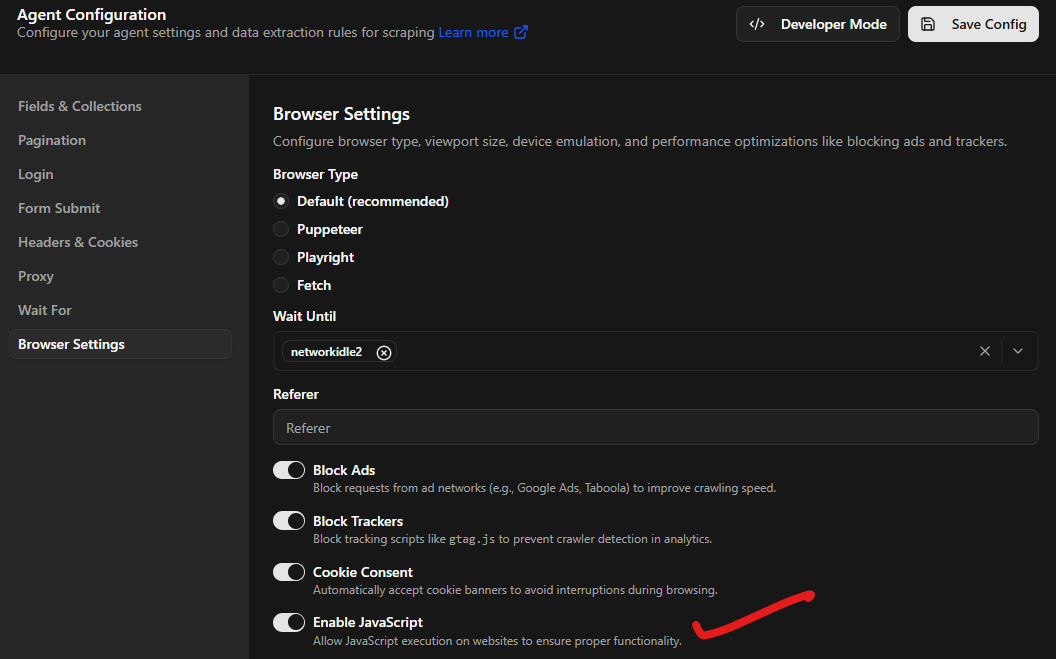
This setting instructs the crawler to launch a browser instance, download all associated scripts, and perform the necessary computations to reveal the final content. This is a critical requirement for any project involving AJAX calls or content that appears only after a user interaction or page load event.
Wait for Selector
Timing is a major factor in dynamic website scraping. Because different elements of a page may load at different speeds, the scraper needs to know when the data is ready for extraction. The wait for selector feature allows you to define a specific CSS selector that must be present in the DOM before the agent continues the data extraction.
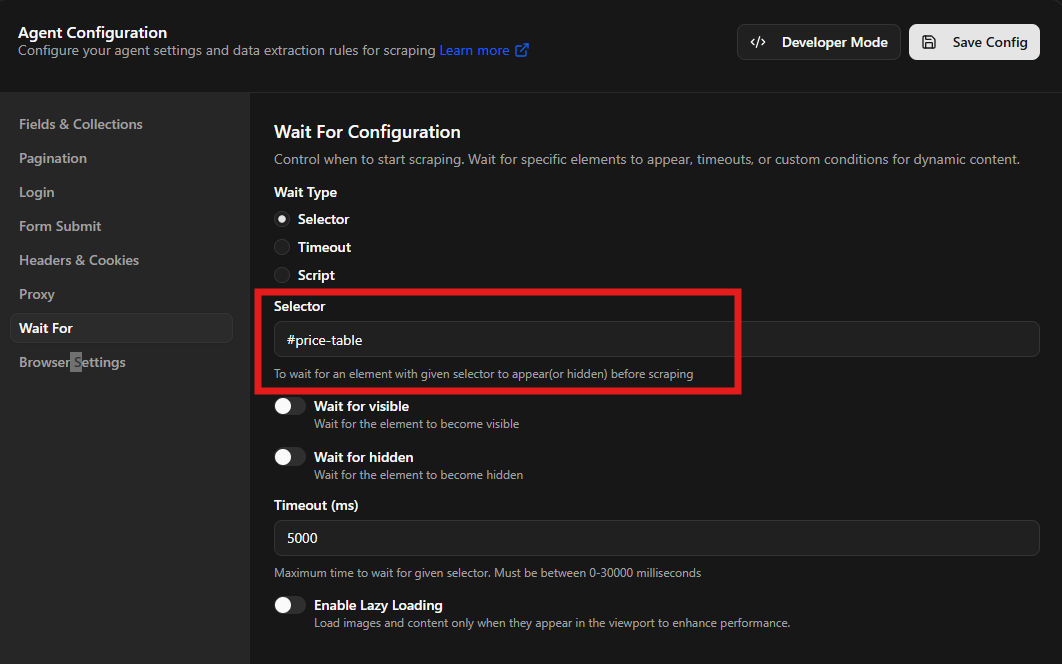
For example, if a price table is loaded via an external API call, you can set the agent to wait for the table ID or class. The browser will wait for that specific element to appear, ensuring that you do not receive empty results from a page that has not finished loading its dynamic components.
Wait for Timeout
There are scenarios where a specific element might not be the best trigger for extraction, such as when dealing with lazy-loading images or complex animations that take time to settle. The wait for timeout setting allows you to implement a hard delay in milliseconds, for example 5000ms in my screenshot below.
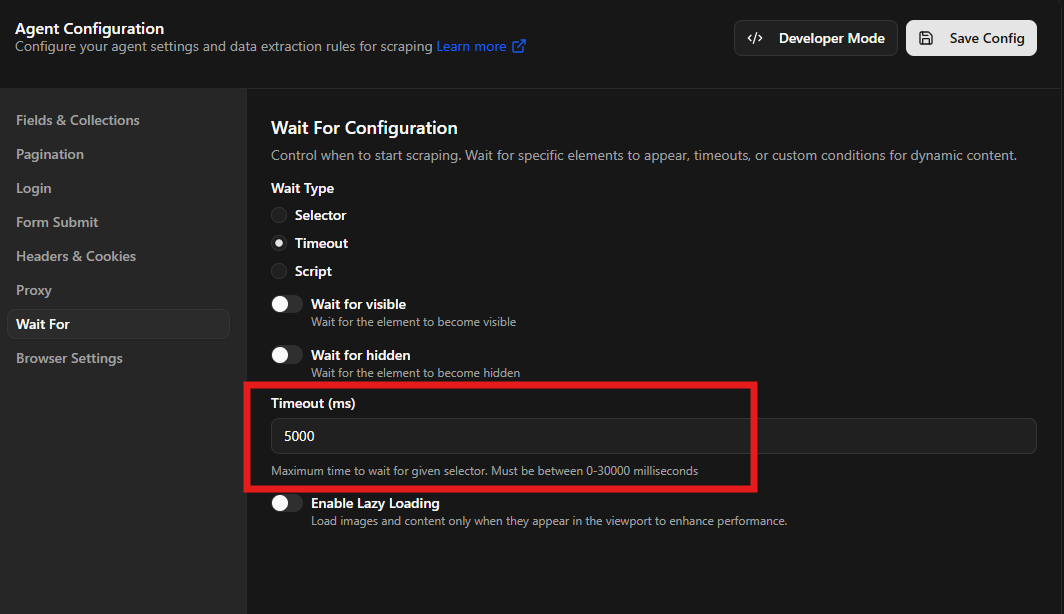
This pause ensures that the headless browser remains on the page for a specific duration before the scraping dynamic content process captures the data. While waiting for a selector is more efficient, a timeout is a helpful fallback for sites with unpredictable loading patterns or those that perform background tasks without immediate visual changes.
Wait for JavaScript
For advanced browser automation, you may need to check for specific internal states or perform actions that standard selectors cannot handle. The wait for script feature allows you to execute custom JavaScript within the page context.
This is highly effective for client-side web scraping where you might need to wait for a global JavaScript variable to be true, wait for a specific network request to complete, or even trigger a scroll event to reveal more data.
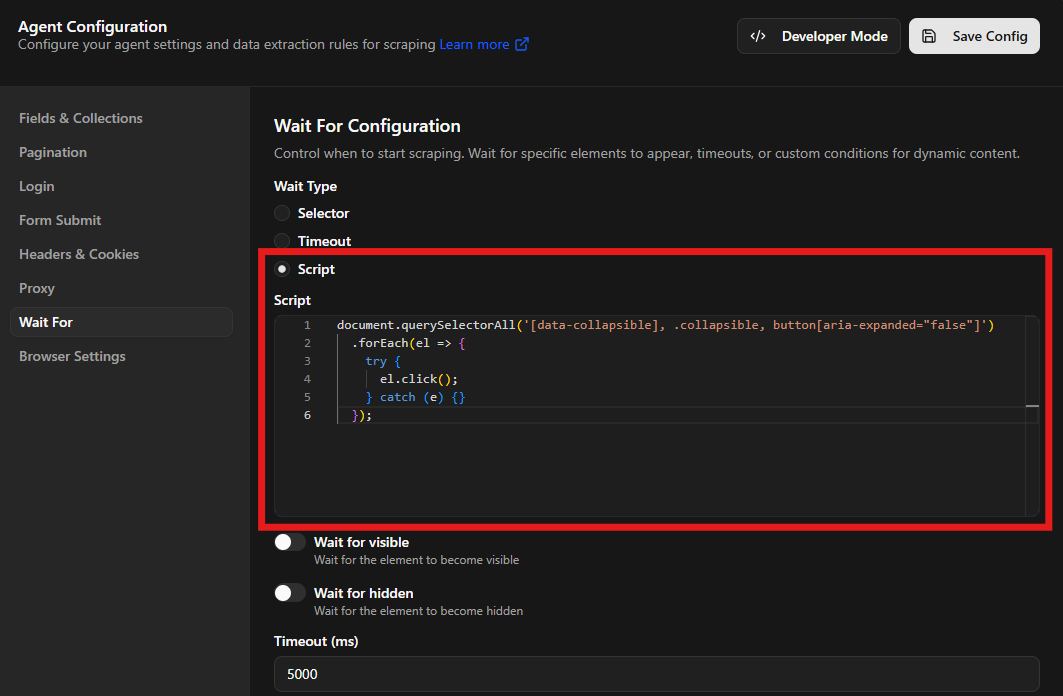
You can also use this option to actively manipulate the DOM - for example, clicking on collapsible panels to expand hidden content, triggering UI interactions, or modifying elements before extraction, for example -
Expanding Collapsible Panels
// Click all collapsible elements to expand hidden content
document.querySelectorAll('[data-collapsible], .collapsible, button[aria-expanded="false"]')
  .forEach(el => {
    try {
      el.click();
    } catch (e) {}
  });

// Optional: wait until all panels are expanded
return new Promise((resolve) => {
  setTimeout(resolve, 1000); // adjust delay if needed
});