To extract image URLs from a website, inspect an image, identify the attribute that holds its URL, and configure your scraper to extract that attribute. For standard images, use src. For lazy-loaded or responsive images, you may need data-src, srcset, or another attribute instead.
Web scrapers typically collect image URLs from the page HTML rather than download the image files during the initial scrape. You can process those URLs directly or pass them to an automated file downloader. This workflow supports e-commerce scraping, digital asset management, real estate aggregation, and machine learning dataset collection.
Extract standard image URLs with Agenty
Browsers render images from HTML attributes or CSS declarations. Before configuring a field, check how the website embeds the image and where it stores the URL.
A standard <img> element stores the image URL in src:
<img src="https://example.com/images/product-main.jpg" alt="Sample Product" class="product-image">
For this example, use .product-image or img.product-image as the CSS selector and extract src.
In a scraping agent, image URL extraction works like any other HTML attribute extraction:
- Open your browser’s Developer Tools by pressing
F12, or right-click the image and select Inspect. - Locate the
<img>tag in the DOM tree and choose a reliable CSS selector, such as.product-gallery imgor#main-image. - In the scraper field configuration, set the extraction type to
ATTR(Attribute). - Enter
srcin the attribute name field.
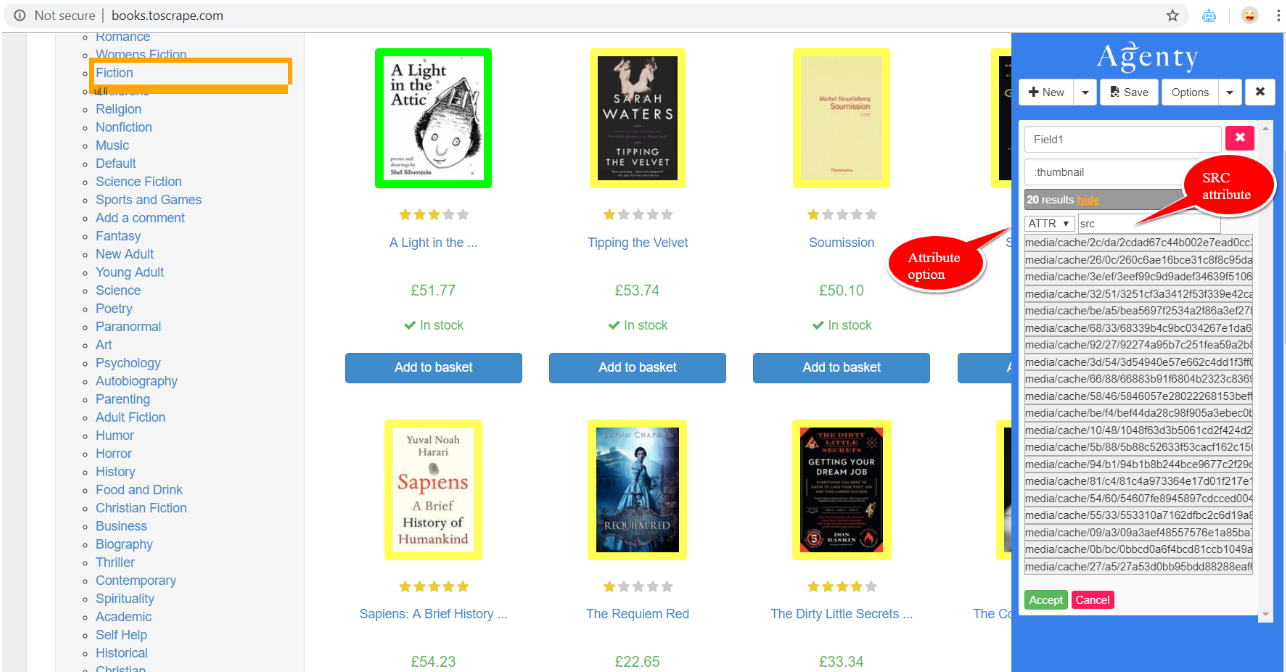
The scraper extracts the string assigned to src for every matching element across the target URLs. For field configuration and job-running instructions, see how to create a scraping agent.
Extract lazy-loaded image URLs
Most modern websites use lazy loading to improve page load speed. The browser delays loading off-screen images until the user scrolls them into view.
With lazy loading, the initial HTML typically stores a lightweight placeholder or transparent pixel in src, such as data:image/svg+xml... or placeholder.gif. The real image URL sits in a custom data-* attribute.
Common lazy load attributes include:
data-srcdata-originaldata-lazy-srcdata-fallback-srcdata-srcset
When the page loads or a visitor scrolls, client-side JavaScript reads the data attribute and copies its value into src.
To find and extract the high-resolution source:
- Inspect the image before scrolling the page.
- Check whether
srccontains a placeholder and an attribute such asdata-srccontains the actual image URL. - Set the field extraction type to
ATTRand enter that exact attribute name instead ofsrc.
The lazy-loaded demo page at https://ressio.github.io/lazy-load-xt/demo/fadein.htm shows this pattern:

Here, data-src holds the destination image URL, while src holds the deferred placeholder. Extracting data-src captures the full image path on the first request without needing full scroll interactions.
You can test selectors against live HTML with the Agenty online extract tool.
Extract responsive images and CSS backgrounds
Choose the largest image from srcset
Modern websites often provide several image sizes for different screen resolutions through srcset:
<img src="small.jpg" srcset="product-320w.jpg 320w, product-800w.jpg 800w, product-1200w.jpg 1200w" alt="Product">
To get the highest available resolution, extract srcset rather than src, then parse out the largest file reference.
Extract an inline background image
Some sites place images in inline CSS background properties rather than image elements:
<div class="hero-banner" style="background-image: url('https://example.com/assets/banner.jpg');"></div>
For this pattern, extract the style attribute and use a regular expression to capture the URL inside url('...').
Fix common image URL issues
Resolve relative URLs
Websites often use relative paths for internal assets:
<!-- Relative path -->
<img src="/media/catalog/product/p/1/p1001.jpg" alt="Item">

<!-- Absolute path -->
<img src="https://scrapingsandbox.com/media/catalog/product/p/1/p1001.jpg" alt="Item">
A downstream system can’t locate an image from a path such as /media/catalog/... without the domain prefix.
To resolve this:
- Verify whether the website provides absolute paths in alternate attributes (such as
data-zoom-imageor Open Graph tags like<meta property="og:image">). - Prepend the website base domain (for example,
https://scrapingsandbox.com) during post-processing or data export.
Find higher-resolution CDN images
Many platforms, including Shopify, Cloudinary, and Fastly, dynamically generate image dimensions through query parameters. Image URLs can also contain dimension suffixes, as in this thumbnail and full-size pair:
<img src="https://cdn.example.com/product_100x100.jpg?v=123456" data-full-size="https://cdn.example.com/product_1024x1024.jpg?v=123456">
If you need high-resolution assets:
- Check for a higher-quality variant in
data-zoom-image,data-large-img, or the linked<a>tag wrapping the image. - If only a thumbnail is available, inspect its URL pattern. Many CDNs let you replace dimension suffixes or parameters such as
_100x100or?width=100with larger dimensions, or remove query parameters entirely.
Select a format from a <picture> element
Sites serving WebP or AVIF images often use the HTML5 <picture> tag:
<picture>
  <source srcset="image.avif" type="image/avif">
  <source srcset="image.webp" type="image/webp">
  <img src="image.jpg" alt="Standard Format">
</picture>
If your downstream workflow requires a specific format:
- Target
picture > source[type='image/webp']and extract thesrcsetattribute for WebP images. - Target
picture > imgand extract thesrcattribute for standard JPEG or PNG fallbacks.
Image extraction selector cheat sheet
| HTML Pattern | CSS Selector | Attribute | Output Value |
|---|---|---|---|
<img src="pic.jpg"> |
img |
src |
pic.jpg |
<img data-src="pic.jpg"> |
img |
data-src |
pic.jpg |
<img data-original="pic.jpg"> |
img |
data-original |
pic.jpg |
<meta property="og:image" content="pic.jpg"> |
meta[property='og:image'] |
content |
pic.jpg |
<a href="large.jpg"><img src="thumb.jpg"></a> |
a:has(img) |
href |
large.jpg |
<source srcset="pic.webp"> |
picture source |
srcset |
pic.webp |