Playwright is an open-source Node.js library developed by Microsoft for automating web browser interactions. It enables developers and QA engineers to programmatically control modern web browsers to perform tasks such as taking screenshots, generating PDFs, crawling Single-Page Applications (SPAs), and automating complex form submissions. Playwright provides a unified, high-level API for both headless (UI-less) and headed (visible) browser execution.
With native support for Chromium, Firefox, and WebKit through a single API, Playwright simplifies cross-browser automation, ensuring consistent functionality across different browser engines. For projects requiring automated web data extraction without self-hosting browser instances, a cloud-managed scraping agent provides dynamic rendering and scalable data collection.
Setting Up Playwright
Playwright requires Node.js (version 16 or higher) installed on your system. You can initialize a new project and install Playwright alongside browser binaries using npm.
Initialize Project and Install Dependencies
Run the following commands in your terminal:
mkdir playwright-automation
cd playwright-automation
npm init -y
npm install playwright
npx playwright install
If you plan to use Playwright specifically with its built-in test runner framework, install the @playwright/test package:
npm install -D @playwright/test
Web Scraping with Playwright
Playwright is particularly effective for web scraping dynamic sites built with JavaScript frameworks like React, Vue, or Angular. Because it runs inside a real browser instance, it handles client-side rendering, AJAX requests, and dynamic DOM updates automatically.
Basic Data Extraction Example
To extract content from a web page using Playwright, follow these basic steps:
- Launch a browser engine instance (e.g., Chromium).
- Open a new context and page tab.
- Navigate to the target web page URL.
- Query target elements using CSS selectors or locators and extract text content.
- Close the browser instance to release system resources.
const { chromium } = require("playwright");

(async () => {
  // Launch Chromium browser instance
  const browser = await chromium.launch({ headless: true });
  const page = await browser.newPage();

  // Navigate to target website
  await page.goto("https://scrapingsandbox.com/products");

  // Extract text content from element
  const elementText = await page.textContent("h4");
  console.log("Extracted Text:", elementText);

  // Close browser
  await browser.close();
})();
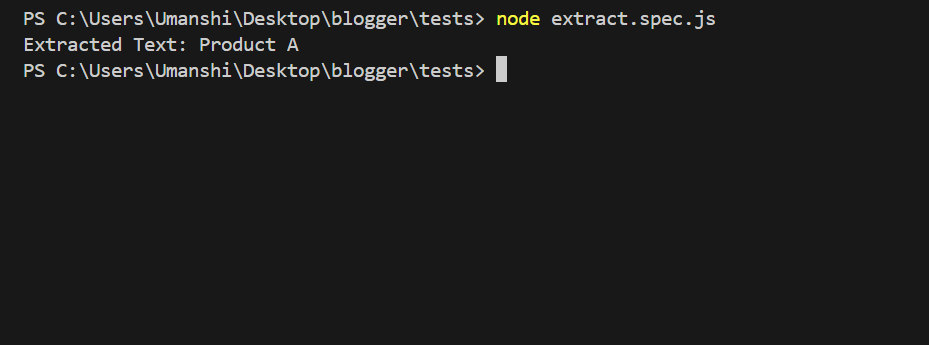
To run the script in VS Code or your command line terminal, execute:
node extract.spec.js
Best Practices for Web Scraping Workflows
- Auto-Waiting: Playwright automatically waits for elements to meet actionability checks (visible, attached to DOM, stable) before attempting extraction, which reduces timing errors on slow network connections.
- Data Parsing: You can combine Playwright browser execution with an automated extract tool to streamline parsing, JSON transformation, and structured export.
- Managing IP Blocks: When scaling web scrapers across multiple pages, route traffic through proxy networks. Review our guide on anonymous web scraping using proxy servers to configure context-level proxy options.
Website Testing and Automation
Playwright includes advanced features engineered for end-to-end website testing and cross-platform browser validation:
- Browser Engine Support: Playwright works across Chromium (Google Chrome, Microsoft Edge), Firefox, and WebKit (Apple Safari), allowing you to run cross-browser test suites with a single codebase.
- Headless and Headed Modes: Execute tests headlessly in CI/CD build environments for high-performance runs, or switch to headed mode during local script development to visually observe actions.
- Network Interception: Intercept, mock, or rewrite network traffic. You can stub API responses, verify fetch requests, or block static media assets (e.g., images, styles) to speed up execution.
- Mobile Device Emulation: Built-in device profiles enable seamless emulation of mobile screen viewports, user agents, and touch capabilities for testing responsive layouts on iOS and Android devices.
-
Multiple Pages and Isolated Contexts:
BrowserContextinstances act as independent incognito sessions within a single browser process. You can create multiple isolated contexts to test multi-user scenarios or process concurrent tasks without memory overhead.
Capturing Screenshots with Playwright
Capturing visual snapshots is crucial for automated UI regression testing and layout monitoring. While developers can capture instant web images using a standalone screenshot tool, Playwright provides full programmatic control over viewport dimensions, clip regions, and full-page screenshots.
Here is an example script using @playwright/test:
import { test } from '@playwright/test';

test.only('page screenshot', async () => {
  const browser = await test.chromium.launch({ headless: false });
  const context = await browser.newContext({
    viewport: { width: 1280, height: 720 },
  });
  const page = await context.newPage();

  await page.goto("https://scrapingsandbox.com/products");
  await page.screenshot({ path: "products.png", fullPage: true });

  await browser.close();
});
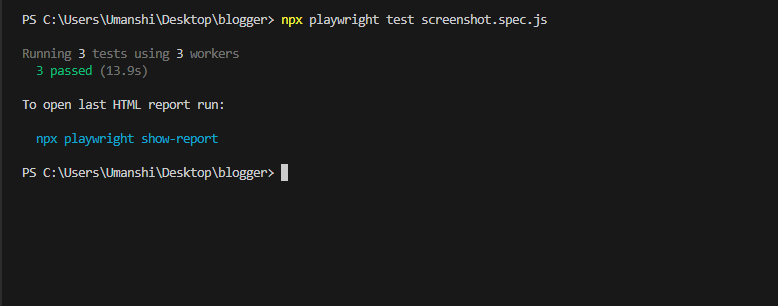
To run the test script using the Playwright runner in VS Code or terminal:
npx playwright test screenshot.spec.js
Viewing Test Execution Reports
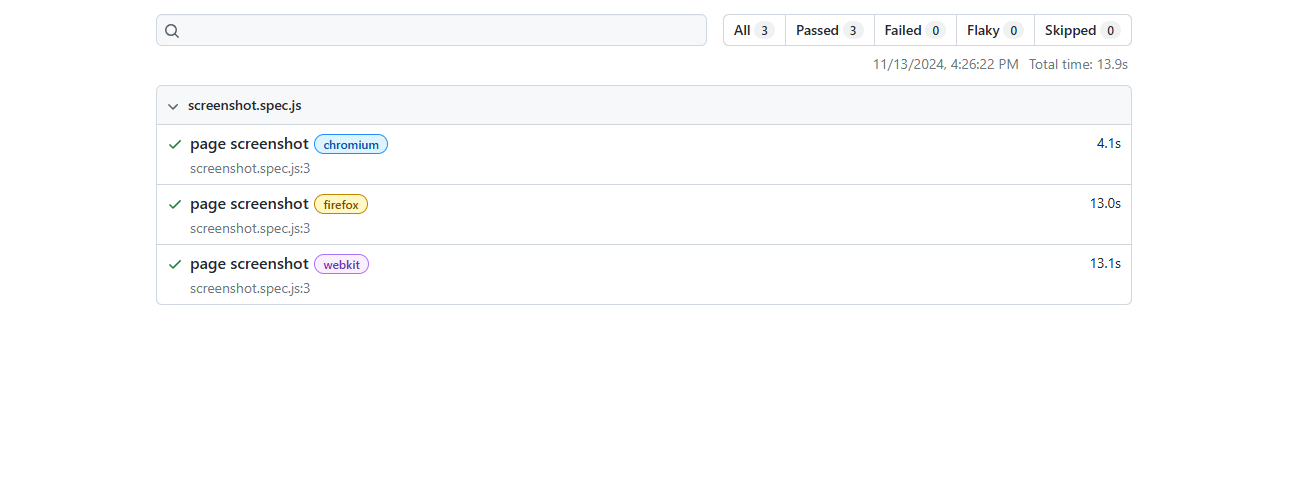
Playwright comes with an interactive HTML reporting tool that logs test durations, step actions, screenshots, and visual trace logs.
To generate and view the HTML report in your browser after running tests, execute:
npx playwright show-report